STS Certificate
Checking Expiration and Renewing STS Certificate on vCenter Servers
Issue/Introduction
The vCenter Server Security Token Service (STS) is a Web service that issues, validates, and renews security tokens.
In an environment with a vCenter Server Appliance (VCSA) 6.5.x, 6.7.x or vCenter Server 7.0.x, 8.0.x these symptoms may appear:
- The
vmware-vpxdservice fails to start. - Logging in to the vSphere Client fails with the error: HTTP Status 400 – Bad Request Message BadRequest, Signing certificate is not valid
- In the
/var/log/vmware/vpxd-svcs/vpxd-svcs.logfile, there may be entries similar to:
ERROR com.vmware.vim.sso.client.impl.SecurityTokenServiceImpl$RequestResponseProcessor opId=] Server rejected the provided time range. Cause:ns0:InvalidTimeRange: The token authority rejected an issue request for TimePeriod [startTime=Date MM DD:TT:SS EST YYYY, endTime=Date MM DD:TT:SS EST YYYY] :: Signing certificate is not valid at Date MM DD:TT:SS EST YYYY, cert validity: TimePeriod [startTime=Date MM DD:TT:SS EST YYYY, endTime=Date MM DD:TT:SS EST YYYY]- In /var/log/vmware/sso/vmware-identity-sts.log you may see errors similar to:
ERROR sts[##:tomcat-http--##] Throwing InvalidTimeRangeException! The token authority rejected an issue request for time period [startTime=Sat Mar 15 14:20:56 GMT 2025, endTime=Sat Mar 15 14:30:56 GMT 2025] :: Signing certificate is not valid- Logging in through the Web client display errors similar to:

- Logging in through the Web Client displays a message similar to: "Username and password are required"
- Replacing any certificate on either PSC or VCSA fails.
- Adding, modifying or deleting registrations from the Lookup Service manually using the lsdoctor tool fails.
- Deploying a new PSC and doing a cross-domain repoint fails.
- Deploying a new PSC as a replication partner on the existing SSO domain fails.
- Logging in through the Web client displays errors similar to:
Cannot connect to vCenter Single Sign-On server https://VC_FQDN/sts/STSService/vsphere.local
OR
Cannot connect to vCenter Single Sign-On server https://VC_FQDN:7444/sts/STSService/vsphere.local
OR
[400] An error occurred while sending an authentication request to the vCenter Single Sign-On server
Connecting services with VCSA fails with vpxd authorization errors similar to:
[YYYY-MM-DDTHH:MM:SS] info vpxd[12853] [Originator@6876 sub=vpxCryptopID=###-########] Failed to read X509 cert; err: 151441516- Trying to export a VM as OVF fails, and /var/log/vmware/content-library/cls.log contains the following error:
[YYYY-MM-DDTHH:MM:SS] [INFO ] http-nio-####-exec-#### ######## ####### ###### com.vmware.vise.security.spring.DefaultAuthenticationProvider     Session initialization complete for sessionId ######, clientId ######
[YYYY-MM-DDTHH:MM:SS] [INFO ] http-nio-####-exec-#### com.vmware.vapi.security.AuthenticationFilter                     Authentication failed com.vmware.vapi.std.errors.Unauthenticated: Unauthenticated (com.vmware.vapi.std.errors.unauthenticated) => {
        at com.vmware.cis.data.service.session.SessionAuthenticationHandler.authenticate(SessionAuthenticationHandler.java:36)
        at com.vmware.vapi.security.AuthenticationFilter.invoke(AuthenticationFilter.java:233)
Environment
VMware vCenter Server 6.5.x VMware vCenter Server 6.7.x VMware vCenter Server 7.0.x VMware vCenter Server 8.0.x
Cause
These issues occur when the Security Token Service (STS) certificate has expired. This causes internal services and solution users to not be able to acquire valid tokens and as a result fails to function as expected.
Note: When the STS certificate expires, it does so without warning. On some systems, this expiry may occur as soon as two years from the initial deployment.
The following scenarios can cause STS signing certificate to expire at 2 years:
- Fresh installation of PSC/vCenter Server 6.5 starting with U2 or later (6.5 only).
- Fresh installation of PSC/vCenter Server 6.5 U2 or any later 6.5 releases and upgraded to a later version including 6.7 and 7.0.
- STS signing certificate has been replaced using certool post-installation of PSC or vCenter Server.
- STS signing certificate has been replaced with custom certificate (Internal/External CA Signed).
- STS certificate generated with the fixsts.sh script
Checking Expiration of STS Certificate on vCenter Servers
From VC vSphere client UI
- Connect to the vSphere HTML5 client through https://vcenter_server_ip_address_or_fqdn/ui.
- From Home Menu, Select Administration.
- Under Certificates, Click on Certificate Management.
- View STS signing Certificate information.
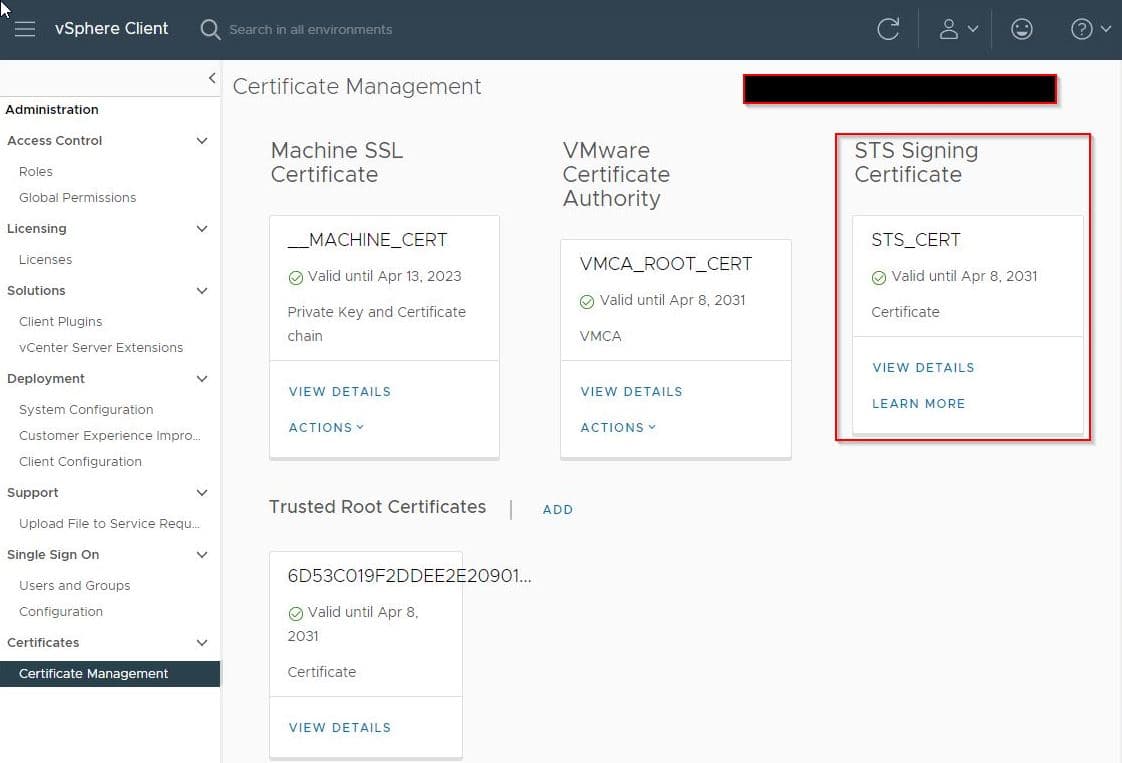
Note
Available from vCenter Server 7.0 Update2 and later.
VCSA CLI - If STS cert has already expired, making the vSphere client inaccessible.
- Connect to the vCenter Server Appliance as root using SSH.
- Run the following command to check the STS signing certificate.
for store in $(/usr/lib/vmware-vmafd/bin/vecs-cli store list | grep -v TRUSTED_ROOT_CRLS); do echo "[*] Store :" $store; /usr/lib/vmware-vmafd/bin/vecs-cli entry list --store $store --text | grep -ie "Alias" -ie "Not After";done;Resolution
NOTE: Ensure to take a no memory snapshot of the vCenter server if it is in standalone mode or powered off snapshots of all vCenter servers in the same SSO domain if they are in linked mode.
Use the new improved certificate management tool vCert - Scripted vCenter Expired Certificate Replacement for all certificate management/replacement workflow.
- Download and install vCert on the vCenter Server Appliance as described in Installation Section.
- Checking the STS signing certificate.
- Use Option 7 - View STS signing certificates from the menu 2: View Certificate Info
- Replacing STS signing certificate.
- Use the Option 7 - STS signing certificates from the menu 3: Manage Certificates.